
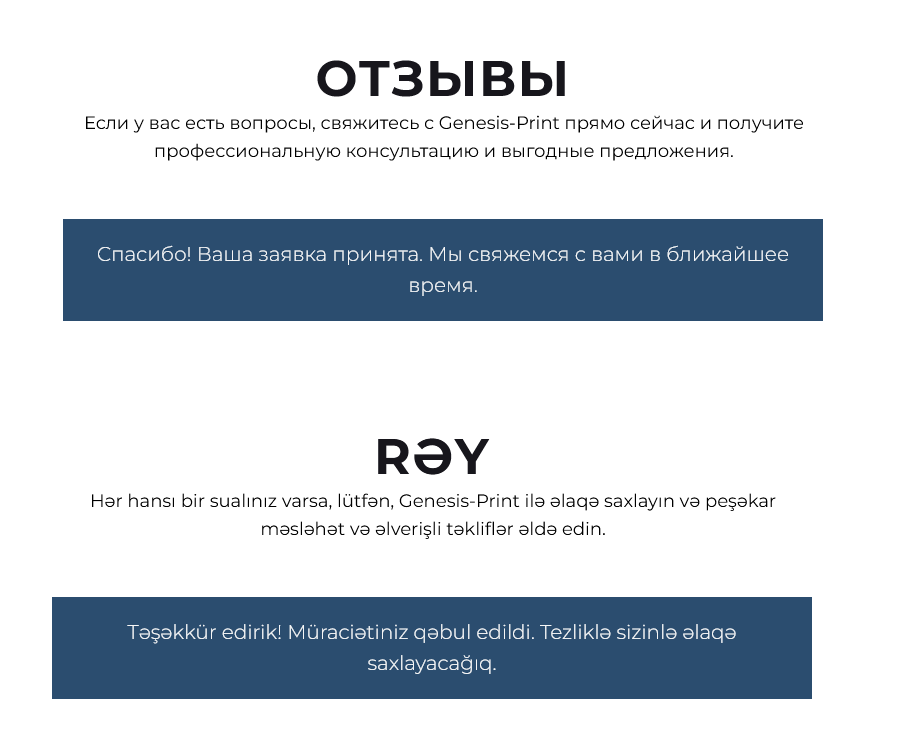
A multilingual website is not just about translated content. It's important that the user could submit an application or place an order as simple as on a local site. That's why Multify not only translates pages and products, but also automatically adapts forms in all languages.
Let's see how it works 👇
📱 1. Automatic localization of the phone number input field
On Tilda websites, forms are created using ready-made blocks. You can set fields in them — text, checkboxes, dropdown lists, including a field for entering a phone number.
But in Tilda, by default, the number format is one for the entire site — for example, +7 for Russia or +374 for Armenia. This is inconvenient for a multilingual website where each user may have their own country and code.
🔧 Multify dynamically changes the code and flag in the phone input field depending on the language and region:
- 🇦🇲 If the user is on the Armenian version — the form will show +374
- 🇷🇺 On the Russian version — +7
- 🇺🇸 On the English version — +1
- and so on.
📦 This even works in the Tilda cart, when the user places an order. The format and flag automatically adjust to the language or country from which the user accessed the site.
💬 Translation of form texts
Tilda by default does not translate service messages, such as:
“Thank you! Your application has been accepted.”
“Please fill in all required fields.”
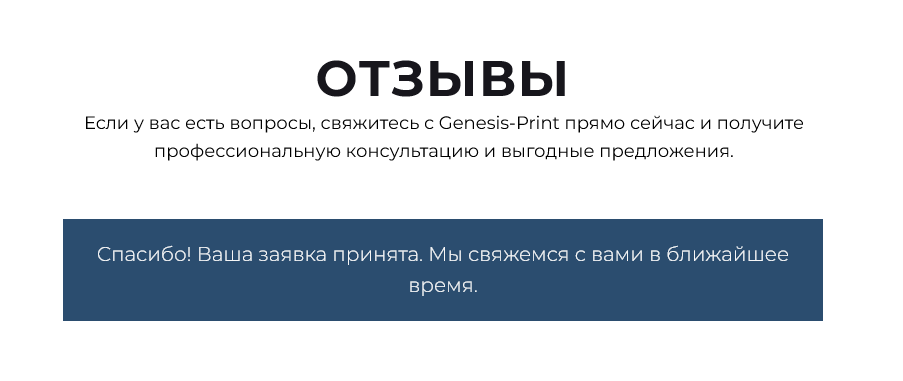
✨ Multify translates even these texts.
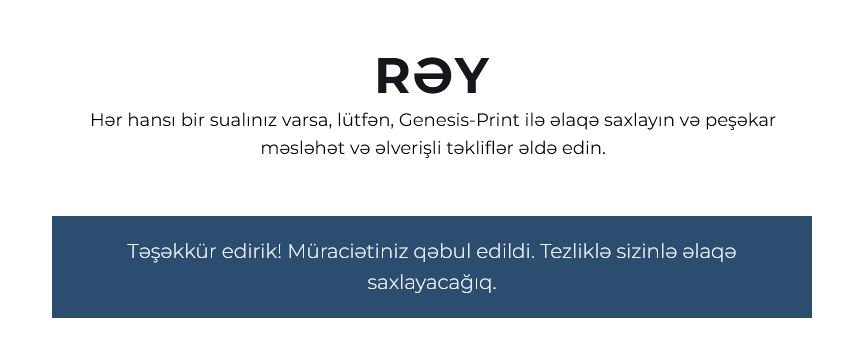
This is especially important if the user has completely switched to another language — everything must be localized down to the last word.
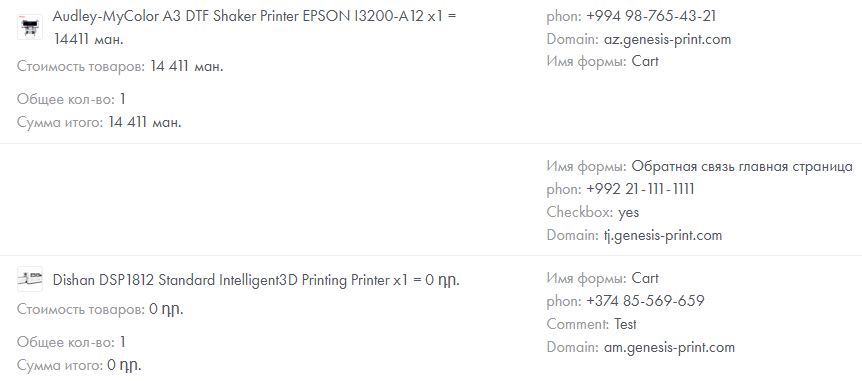
🗂️ 2. From which website did the application come?
When you have one website, everything is simple. But if you use Multify with subdomains (am.example.com, az.example.com, tj.example.com), you need to understand exactly where the application came fromwhere the application came from.
Multify automatically adds a hidden field to each formcan automatically convert currency. For example:
multify_origin: tj.example.comThis field:
- does not require manual setup;
- is transferred to Tilda CRM, Telegram, email, or wherever you have configured sending;
- allows you to filter applications by language or region.
💱 Bonus: currency and cart total localization
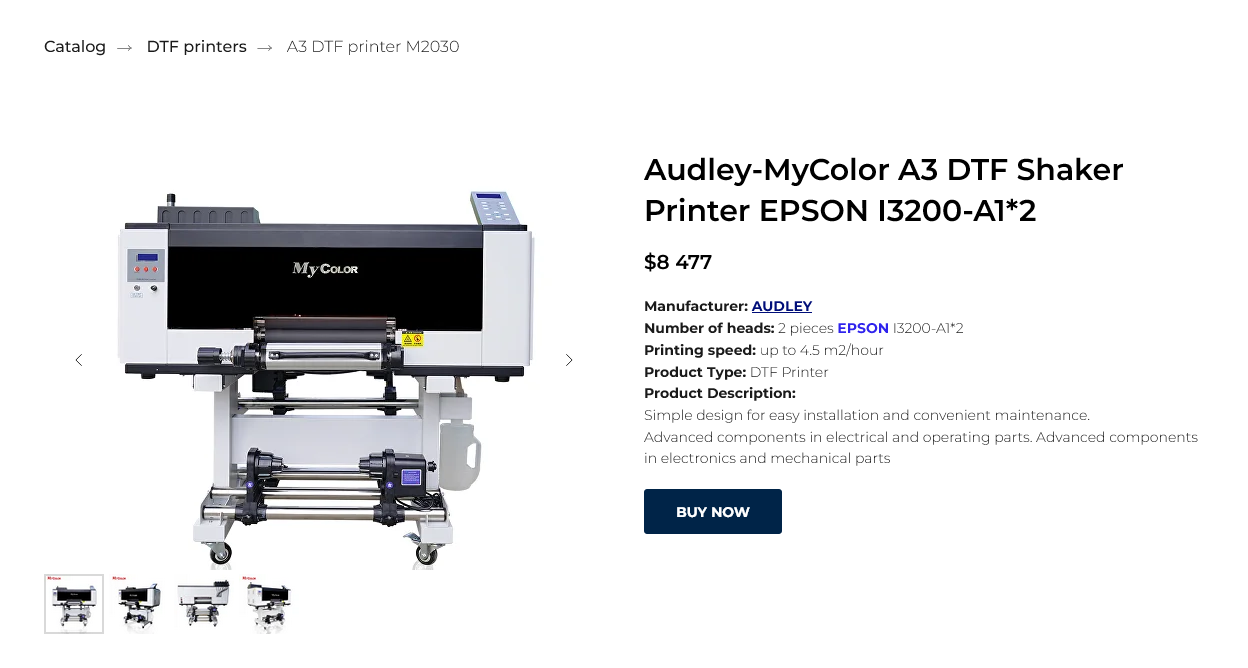
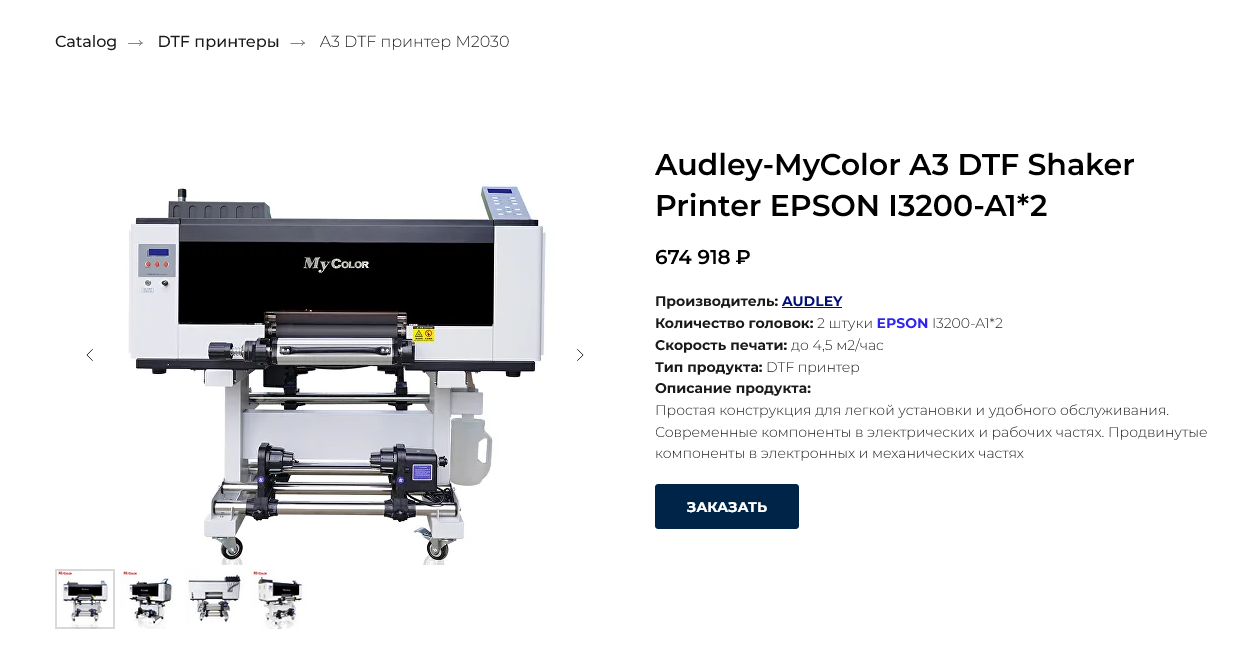
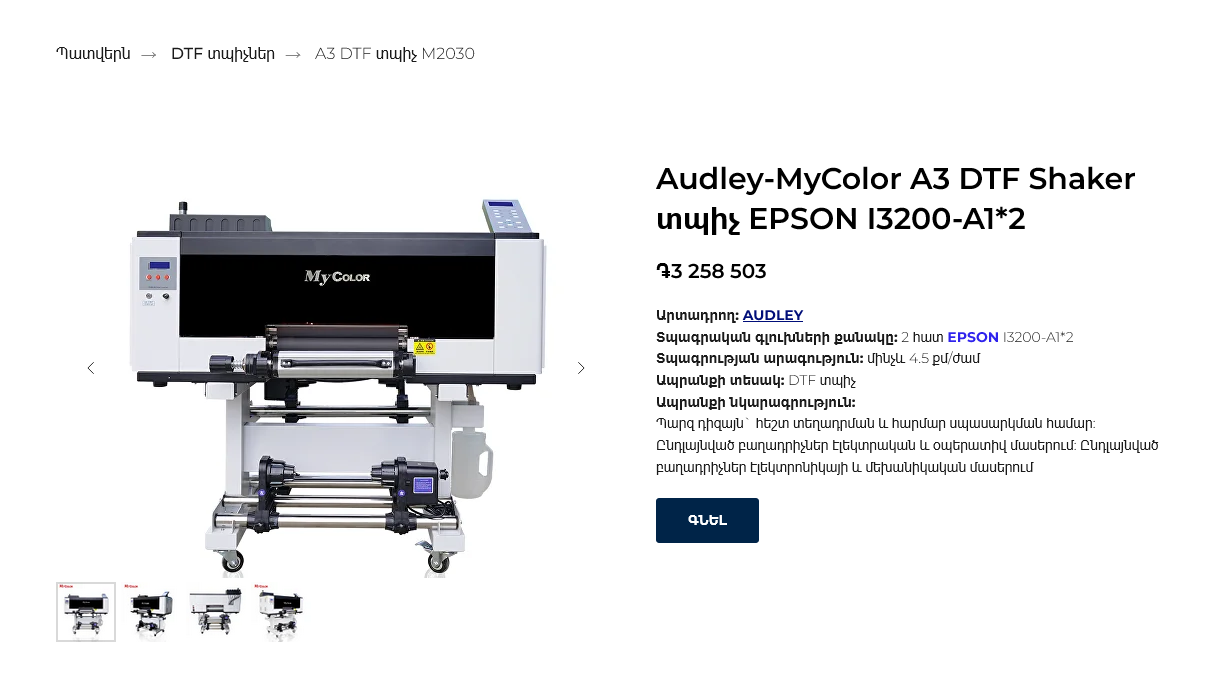
Multify can automatically convert currency. For example:
"currency": {
  "symbol": "֏",
  "side": "l",
  "decimals": 0,
  "convert": {
    "from": "USD",
    "to": "AMD",
    "rate": "auto"
  }
}
💡 This means that:
- Prices are automatically recalculated by the exchange rate';
- The correct symbol is displayed the correct symbol (₽, ֏, ₸, etc.);
- In the correct position (left or right depending on language rules);
- The "Order" button is translated "Order" buttonwhere the application came from.
Below is an example of product cards with prices in USD / RUB / AMDcan automatically convert currency. For example:
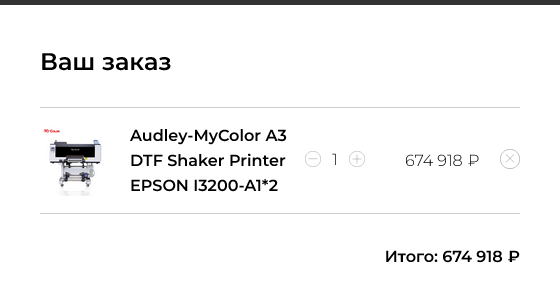
And when placing an order, the word "Total" is translatedcan automatically convert currency. For example:
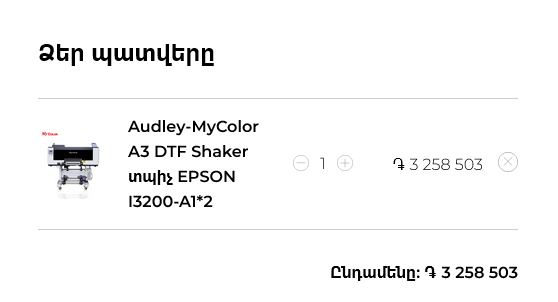
What do you need to do for this?
👉 Nothing.
No additional setup is required; when Multify is connected, form translation will work correctly in all languages.
The entire website interface is translated in a matter of minutes.
🛒 Summary
You get:
📞 Phone in the correct format — in all languages
🌐 Translation of all buttons and messages during order processing
🔍 Visibility — from which subdomain the application came
💸 Correct currency and price
⏱ Translation is done in minutes without additional settings
📞 Phone in the correct format — in all languages
🌐 Translation of all buttons and messages during order processing
🔍 Visibility — from which subdomain the application came
💸 Correct currency and price
⏱ Translation is done in minutes without additional settings
📩 Want to see how it works on your site?
Try it Multify for free for 7 days, for a demonstration of instant translation of all your site's functionality, write to us, without delay.
